Autocomplete
Search autocomplete that shows products from the first letter
Products, categories, suggestions and banners from the first keystroke, in the layout and order your team chooses.

 Example data
Merchandiser view
Layout
Products and suggestionsChoose how the autocomplete window shows its sections. “Filters in the box” brings filters into the window; search tabs work in the other two layouts, which are simplified illustrations here.
In the dashboard: Search → Autocomplete , Layout
First Click Product Boost
OffPins the Forest Duffle Coat (SKU WC-1042): it shows as soon as the shopper clicks into the search box, before typing.
In the dashboard: Search → Autocomplete , First Click Product Boost
Excluded Categories
OffKeeps “Women › Outlet” out of the autocomplete suggestions.
In the dashboard: Search → Autocomplete , Excluded Categories
Search Suggestions
Suggested phrases rotate in the empty search box, so shoppers see what and how they can search: wool coat, hooded parka, belted trench, rain jacket.
In the dashboard: Search → Autocomplete , Search Suggestions
Nothing pinned, nothing excluded, the “Products and suggestions” layout. Switch a setting to see what shoppers get.
Shopper view
Type in the store’s search box, or tap an example search.
Simplified illustration
Category
Price
Products
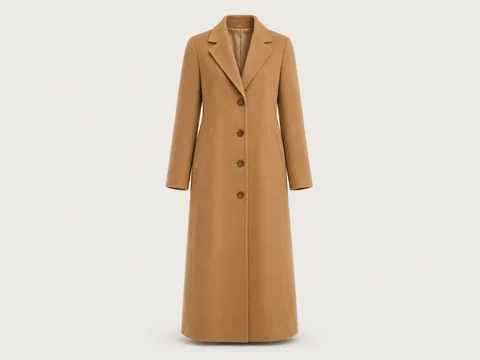 Camel Long Wool Coat$229PinnedFirst Click Product Boost
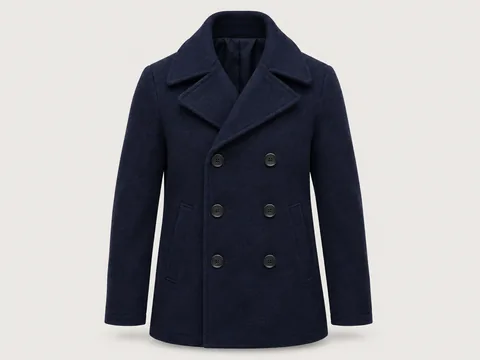 Navy Wool Peacoat$169PinnedFirst Click Product Boost
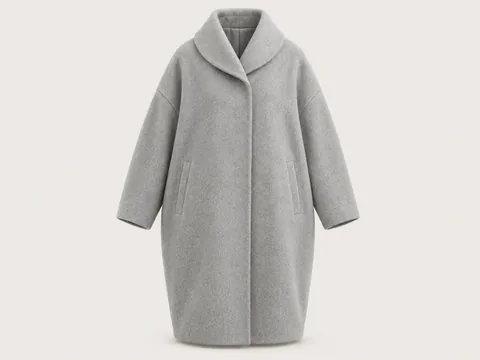 Grey Cocoon Coat$209PinnedFirst Click Product Boost
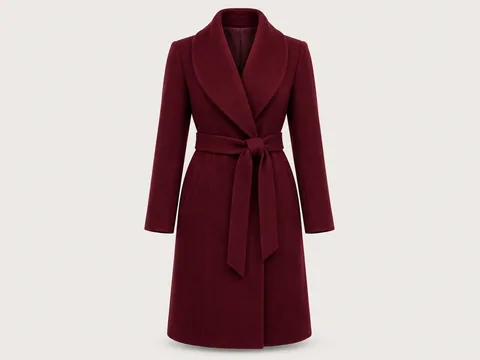 Burgundy Wrap Coat$199PinnedFirst Click Product Boost
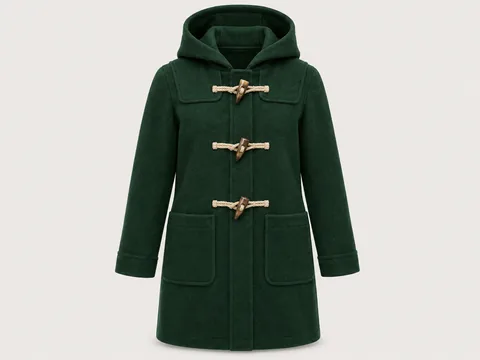 Forest Duffle Coat$175PinnedFirst Click Product Boost
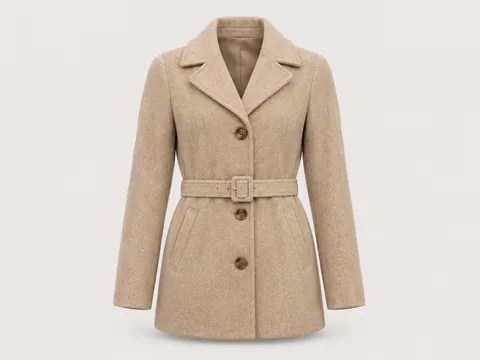 Oat Belted Car Coat$159PinnedFirst Click Product Boost
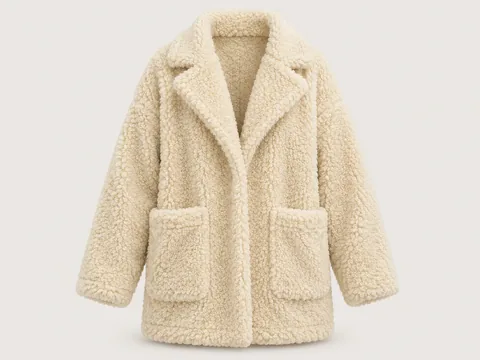 Cream Teddy Coat$99PinnedFirst Click Product Boost
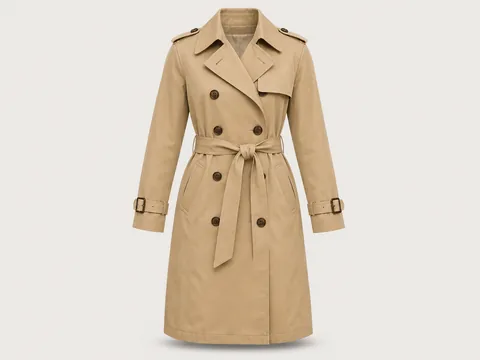 Sand Belted Trench$179PinnedFirst Click Product Boost
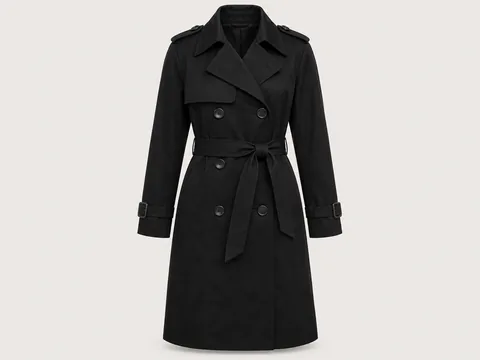 Black Belted Trench$189PinnedFirst Click Product Boost
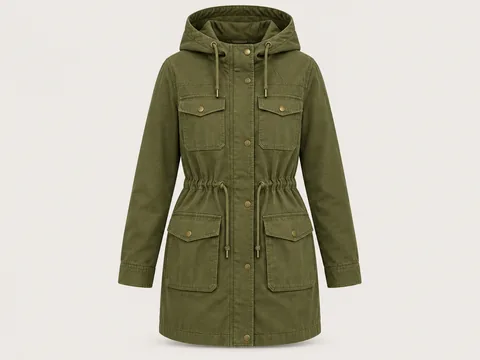 Olive Utility Parka$149PinnedFirst Click Product Boost
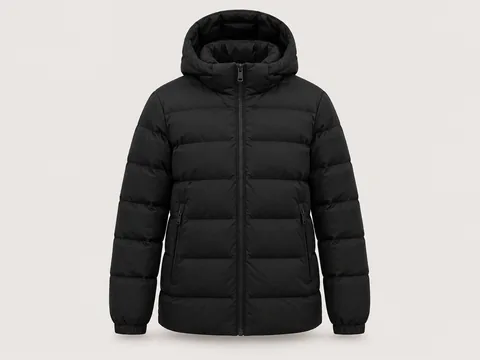 Black Hooded Puffer$129PinnedFirst Click Product Boost
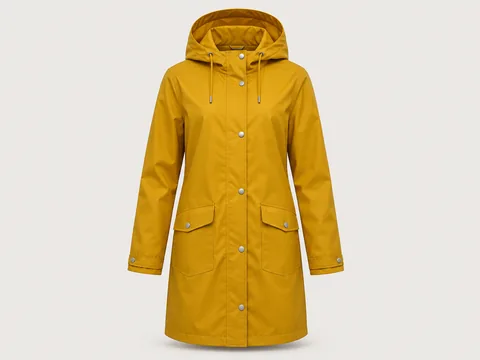 Mustard Rain Jacket$79PinnedFirst Click Product Boost
Recent searches
Popular searches
Popular categories
Suggestions
Categories
Trusted by retail teams







What shoppers see
The right product before the shopper presses Enter
A shopper types “co” and the box already shows coats, the Coats category and the searches other shoppers use. They reach the product in fewer steps, and fewer searches are abandoned.
Products with a photo and a price
Matching products show in the box. One click on the Camel Long Wool Coat opens its product page, with no results page in between.
Searches that finish themselves
Shoppers pick a complete search, such as “wool coat”, instead of typing it out.
Categories to browse
“Women › Coats” takes a shopper who is still looking around straight to the right category page.
Recent and popular searches
A shopper’s own recent searches come back with one click, and the most popular searches on your store show what others look for.
Before they type
Help from the moment the box opens
The empty search box is often the first thing a shopper clicks. Athena puts something useful in it before a single letter is typed.
Ideas for what to search
Phrases such as “wool coat” or “rain jacket” rotate in the empty box, so shoppers see what they can search for, and how.
A product your team picks
A product your team picks appears as soon as the box is opened, such as the coat of your winter campaign. What shows on the first click can be set automatically or chosen by your team.
When nothing matches
When a search finds nothing, the search dropdown says so and keeps showing your first-click content: popular searches and suggested products, set automatically or chosen by your team.
Campaigns in the search box
Meet shoppers where they type
A shopper who types “coat” is already looking for coats. A banner in the search box puts your campaign in front of them at that moment.
A banner on the words that matter
Attach a banner to keywords such as “coat”: it shows in the dropdown while shoppers type. It can be any HTML, not just an image.
Your position, your dates
Choose where the banner appears in the box and give it an optional schedule, so it runs only while the campaign does.
Looks like your store
A search box that feels like part of your store
When the box opens, shoppers should still feel they are in your store, not in someone else’s widget.
Your fonts, colours and styles
Autocomplete uses the same fonts, colours and styles as your website, so it reads as part of the store.
Three layouts to choose from
Products and suggestions, Suggestions first, or Filters in the box, where a shopper narrows “coat” to a category or a price range without leaving the box.
Fine-tuned by your team
Your team can fine-tune the style, so the box matches your store down to the details.
Setup
How your team sets it up
Everything is in the Athena dashboard, under Search → Autocomplete. Nothing reaches shoppers until you publish.
Choose what shows, and how
In Sections, switch sections on or off and set their order; in Layout, pick one of the three layouts.
Add campaigns and the first-click product
Create keyword banners in Banners, and choose the product for the empty box in First Click Product Boost.
Shape suggestions, tabs and categories
Manage the rotating phrases in Search Suggestions, add tabs in Search Tabs, and keep a category such as Outlet out with Excluded Categories.
Preview, then publish
Check the result on desktop and mobile in Preview, then choose Publish Autocomplete. After a layout change, your platform’s cache may need clearing too.
FAQ
Questions about autocomplete
What can autocomplete show?
Depending on your configuration: products, categories, popular and recent searches, search suggestions, banners and more, such as blog posts and documents. Your team chooses the sections and their order.
How is First Click Product Boost different from a product promotion?
First Click Product Boost pins a product, by SKU, that shows as soon as a shopper clicks into the empty search box, before typing. A product promotion pins products in the results of the search terms you set.
Which layouts can we choose from?
Three: Products and suggestions, Suggestions first, and Filters in the box, which brings filtering right into the autocomplete box. Search tabs work in the first two.
How do changes go live?
Preview what shoppers will see on desktop and mobile, then publish the autocomplete in the dashboard. For a layout change, your platform’s cache may need clearing too.
Will autocomplete match our store’s design?
Yes. In every layout, autocomplete uses your store’s own fonts, colours and styles, and custom styling is possible.
See what Athena can do for your business.
Explore your catalogue, integration needs, and opportunities to improve product discovery with our team.
Developed by Syncit Group, certified to ISO 9001 and ISO/IEC 27001
GDPR-compliant
Hosted on AWS in the EU and US, running 24/7
Typically live in 2–3 weeks